YouTube Channel Setup & Branding
Channel Setup & Branding
To create eye-catching YouTube channel art, start with a 2560 x 1440 pixel canvas and position key elements within the 1546 x 423 safe zone. You'll want to use high-resolution visuals, your logo, and minimal text that align with your brand's identity. Keep fonts simple, select colors that pop, and guarantee your design looks great across all devices. Test your artwork thoroughly before publishing, and don't forget to optimize based on viewer engagement. There's so much more to master about creating the perfect channel banner.
Article Highlights
Design channel art at 2560×1440 pixels with key elements in the safe area (1546×423) for optimal viewing across devices.
Choose high-quality visuals and fonts that align with your brand identity and maintain consistency throughout channel elements.
Keep text minimal and strategically placed within the safe zone, using clear typography that's readable on all screen sizes.
Test your channel art across multiple devices to ensure proper display and maintain visual impact at different resolutions.
Monitor engagement metrics and gather audience feedback to optimize channel layout and branding elements over time.
Understanding YouTube Channel Art Dimensions and Safe Zones
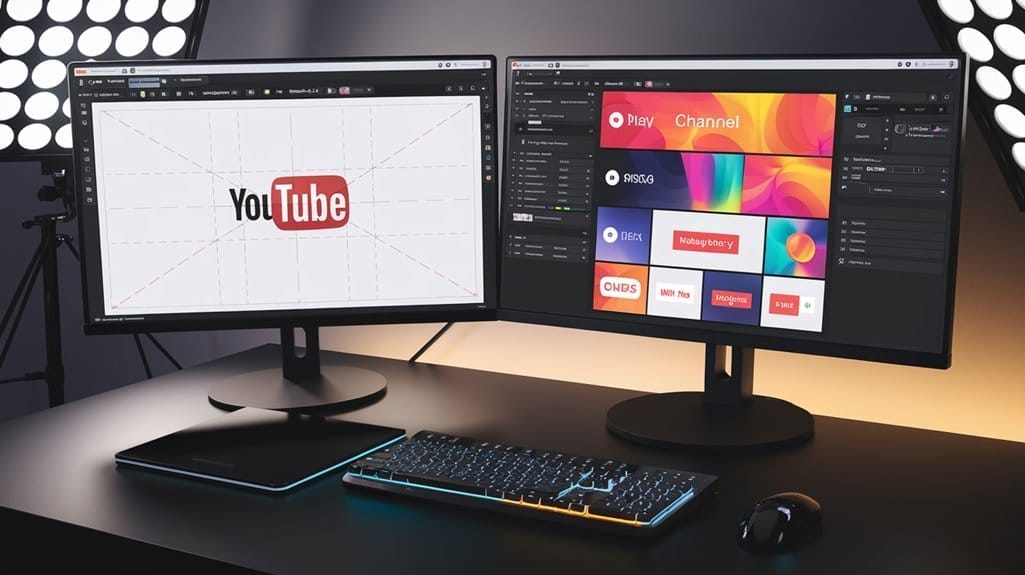
Three key aspects of YouTube channel art can make or break your channel's visual appeal: dimensions, safe zones, and device compatibility. When designing your banner, start with the recommended 2560 x 1440 pixel dimensions, while guaranteeing you don't go below 2048 x 1152 pixels for clear display across all platforms.
Your channel art's safe area is vital – keep all important elements within the central 1546 x 423 pixels. This guarantees your logos and text remain visible whether viewers are watching on mobile phones, desktop computers, or smart TVs. Remember that different devices will crop your banner differently, so placing key content outside the safe area risks it being cut off. For best results, save your design as a PNG or JPEG file under 6MB to maintain quality without sacrificing load times.
Selecting the Right Visual Elements for Your Brand
What makes your YouTube channel art truly stand out from millions of others? It's the strategic selection of visual elements that align with your brand identity. Your channel art template should feature carefully chosen images that directly connect with your content, not just attractive but generic visuals.
| Element | Do's | Don'ts |
|---|---|---|
| Images | Use content-specific visuals | Avoid stock photos |
| Logo | Place in safe zone | Hide in corners |
| Text | Keep minimal, clear fonts | Overcrowd with words |
| Background | High-resolution, on-brand | Use busy patterns |
| Colors | Match brand palette | Random combinations |
When selecting your background image, make certain it's high-quality and maintains clarity across all devices. Position your logo prominently within the safe zone, and incorporate a concise tagline that captures your channel's essence. Test your design across different platforms to verify peak visibility and impact.
Typography and Font Selection Best Practices
Channel Art and Layout Optimization
To create eye-catching YouTube channel art, start with a 2560 x 1440 pixel canvas and position key elements within the 1546 x 423 safe zone. Use high-resolution visuals, your logo, and minimal text that aligns with your brand's identity. Keep fonts simple, select colors that stand out, and ensure your design looks great on all devices. Test everything thoroughly before publishing, and keep optimizing based on viewer engagement. There's so much more to master about creating the perfect channel banner.
Article Highlights
- Design channel art at 2560×1440 pixels with key elements in the 1546×423 safe area.
- Use high-quality visuals and fonts that match your brand identity.
- Keep text minimal, placed within the safe zone, and easy to read.
- Test your channel art on multiple devices for proper display.
- Track engagement and feedback to refine your channel layout over time.
Understanding YouTube Channel Art Dimensions and Safe Zones
Three key factors can make or break your YouTube banner: dimensions, safe zones, and device compatibility. Start with the recommended 2560 x 1440 pixel size. Do not go below 2048 x 1152 to keep a clear display across devices. Keep essential elements (like logos and text) inside the central 1546 x 423 pixels (the safe area) so they're visible on phones, desktops, and TVs. Different devices crop banners differently, so if you place content outside that area, it could get cut off. Save your artwork as a PNG or JPEG under 6MB for best results.
Selecting the Right Visual Elements for Your Brand
To make your channel art stand out, pick visuals that truly align with your channel's identity and topic. Generic or unrelated images won't help your brand; choose content-specific visuals that reinforce your overall message.
| Element | Do's | Don'ts |
|---|---|---|
| Images | Use content-specific visuals | Avoid generic stock photos |
| Logo | Place in the safe zone | Hide in corners |
| Text | Keep minimal, clear fonts | Overcrowd with words |
| Background | High-resolution, on-brand | Use busy patterns |
| Colors | Match your brand palette | Random combinations |
Typography and Font Selection Best Practices
Choose two or three fonts that represent your channel's personality—sans serif for a modern look, serif for traditional content, or anything else that fits your style. Make sure fonts are large enough to be readable on all devices. A clean hierarchy (bold headlines, regular body text) is often the most effective approach.
Color Theory and Brand Identity Implementation
Color has a major impact on branding. Select hues that reflect your channel's message and resonate with your target audience. Maintain solid contrast between background and text for readability. Consistency in color usage across all channel elements strengthens brand recognition.
| Emotion | Primary Color | Brand Association |
|---|---|---|
| Trust | Blue | Professional |
| Energy | Red | Dynamic |
| Growth | Green | Sustainable |
Device-Specific Design Considerations
Keep text and logos within 1546 x 423 pixels to avoid cropping on smaller screens. Use YouTube's device preview to see how your banner appears on TVs, desktops, tablets, and phones before you finalize your design.
Safe Zone Placement Guide
- Center your vital content within the 1546 x 423 pixel area.
- Use previews to check for cropping on different device types.
- Keep critical elements away from the edges of your banner.
Screen Size Optimization Tips
- Focus all key elements in the middle for guaranteed visibility.
- Use a clean, uncluttered design that adapts well to small screens.
- Avoid overly intricate details that may not scale well on phones.
Creating Professional Layouts With Templates
Templates are a huge time-saver. They ensure correct sizing and often come with layers you can quickly modify. Swap images, adjust text, and change colors to maintain brand consistency without starting from scratch.
Incorporating Social Media and Website Links
To maximize your presence across platforms, add social media and website links to your banner. Place them within the safe area so they won't get cut off. Keep branding consistent on your channel art and social profiles to reinforce viewer familiarity.
Technical Requirements for Image Quality
- Recommended resolution: 2560 x 1440 pixels.
- File size limit: 6MB or less.
- Preferred format: PNG (or JPEG if needed).
- Center important elements within the 1546 x 423 safe area.
Testing and Adjusting Channel Art Performance
Once you've uploaded, track metrics like views, click rates, and subscribers to judge your banner's effectiveness. Run A/B tests with different designs to see what resonates. Collect audience feedback through comments or polls, and update your art regularly to keep it fresh.
Frequently Asked Questions
How Do You Make a Good YouTube Channel Art?
Use a 2560 x 1440 pixel canvas, align with brand colors, ensure text is readable, and keep key elements in safe zones to look great on all devices.
How Do I Make a YouTube Channel Layout?
Go to "Customize Channel," add a trailer, organize content into playlists, feature important uploads, and highlight collaborations with featured channels.
How Do I Optimize My YouTube Channel?
Use keyword-rich descriptions, design engaging thumbnails, post consistently, engage with commenters, and optimize video titles for better discoverability.
How Much Does a 1000 View Video Make on YouTube?
Usually between $10 and $30 per 1000 views, depending on factors like audience location, engagement, and ad-block usage.
Conclusion
Your YouTube channel art is like a digital storefront for your brand. By following these design principles and technical guidelines, you'll create a banner that looks amazing on any device, clearly represents your brand, and encourages viewers to explore your content. Keep testing and refining until you're satisfied that your channel art perfectly captures your channel's personality and goals.
Stay informed with valuable online insights and tips delivered straight to your inbox.
Created with ©webmediaservices